Criteria offers world-class assessments that help you spot top talent. From aptitude to personality, emotional intelligence to risk assessments and skills tests—they bring the data, you bring the hires.
TABLE OF CONTENTS
- Connecting Criteria Corp to your ATS account
- Using Criteria Corp in the ATS
Connecting Criteria Corp to your ATS account
Step 1: Access the Partner Marketplace
- Click on the Menu Icon (top right of your dashboard)
- Select Account Details
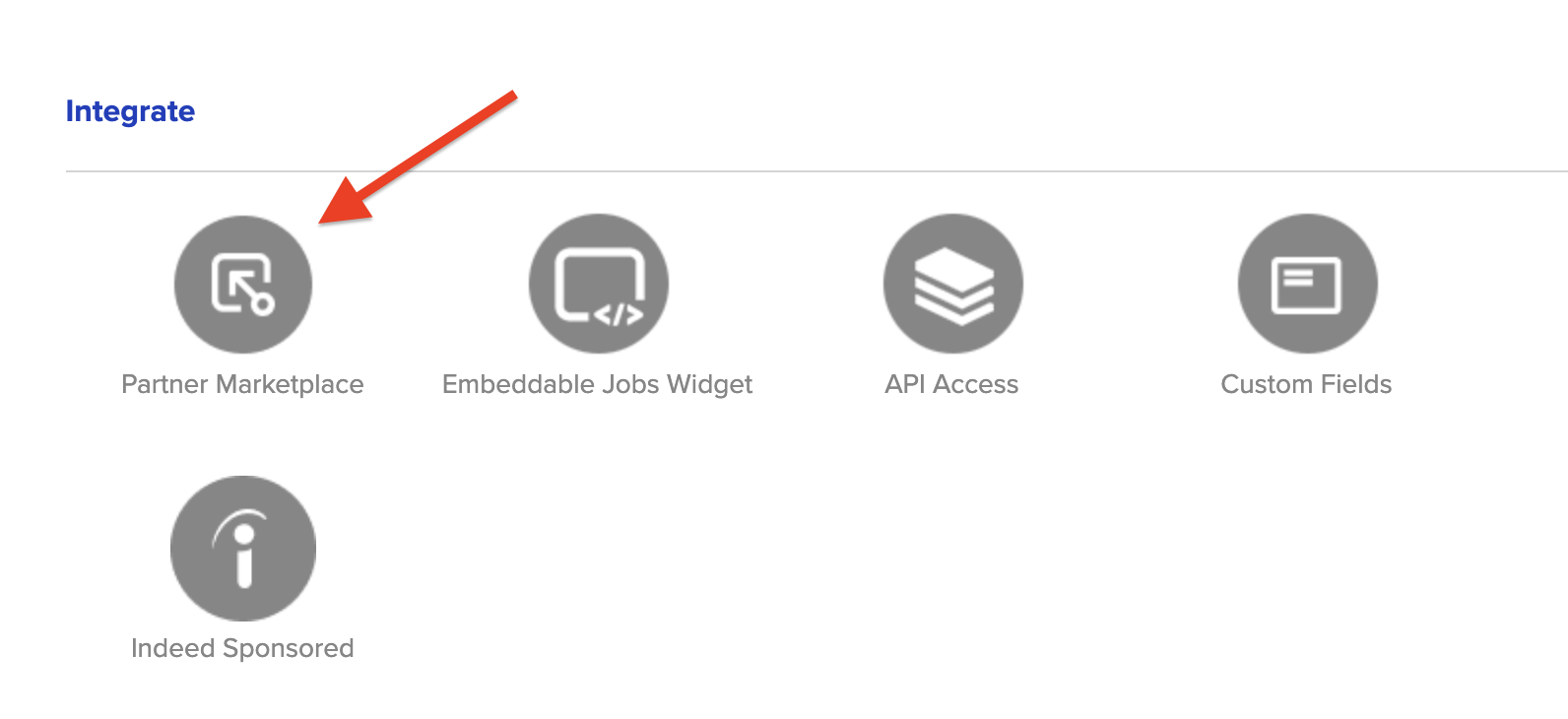
- Under the Integrate section, click the Partner Marketplace icon
Step 2: Select Criteria Corp from the Marketplace
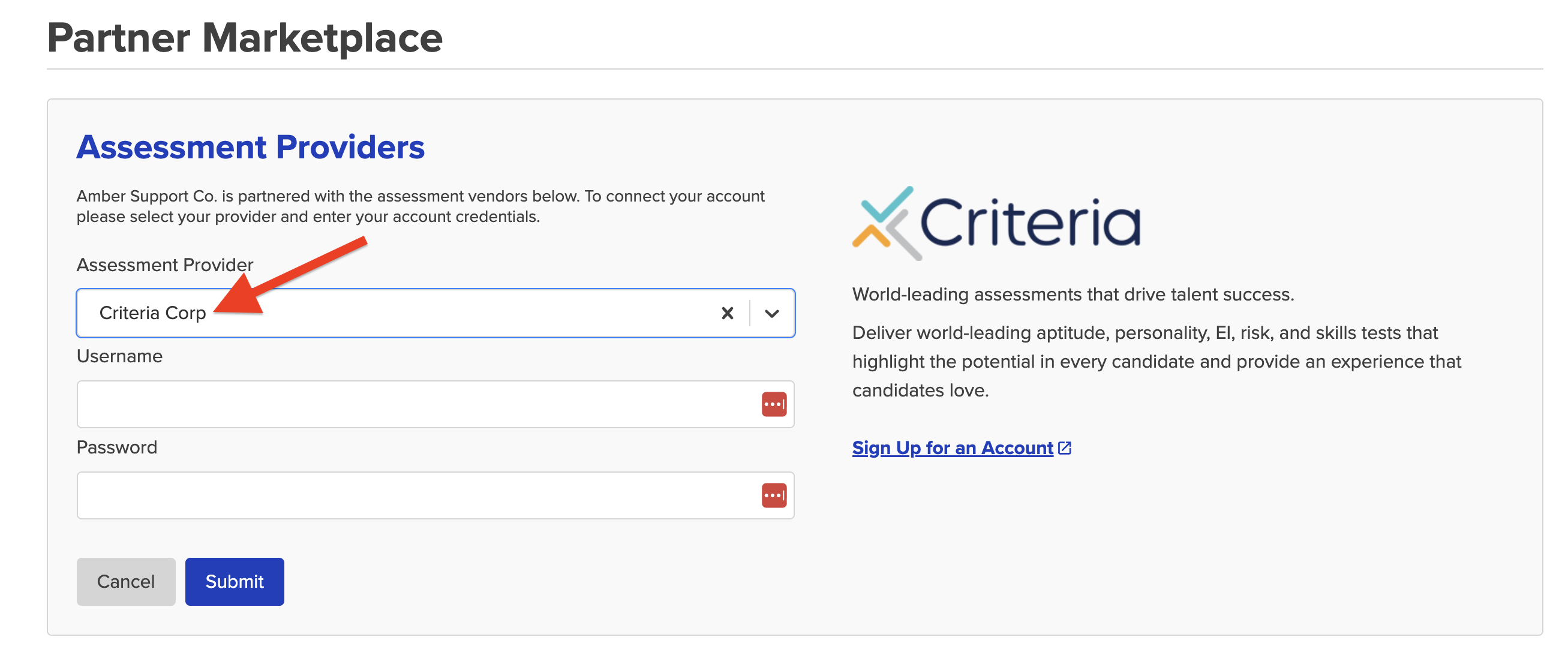
- Scroll through the list or use the search bar to find Criteria Corp
- Click on the Criteria Corp tile
Step 3: Sign In or Sign Up
- If you already have a Criteria account, great! If not, click the Sign-Up button to create an account directly from the integration screen.
Step 4: Retrieve Your Integration Token
To connect your ATS to Criteria, you’ll need your Integration Token (also referred to as an API key). This token acts as both your Username and Password for the integration. Contact your Criteria representative and ask for your Integration Token. Without this token, you won’t be able to complete the setup.
Step 5: Enter Your Token and Connect
- Once you’ve received your token, enter it into both the Username and Password fields
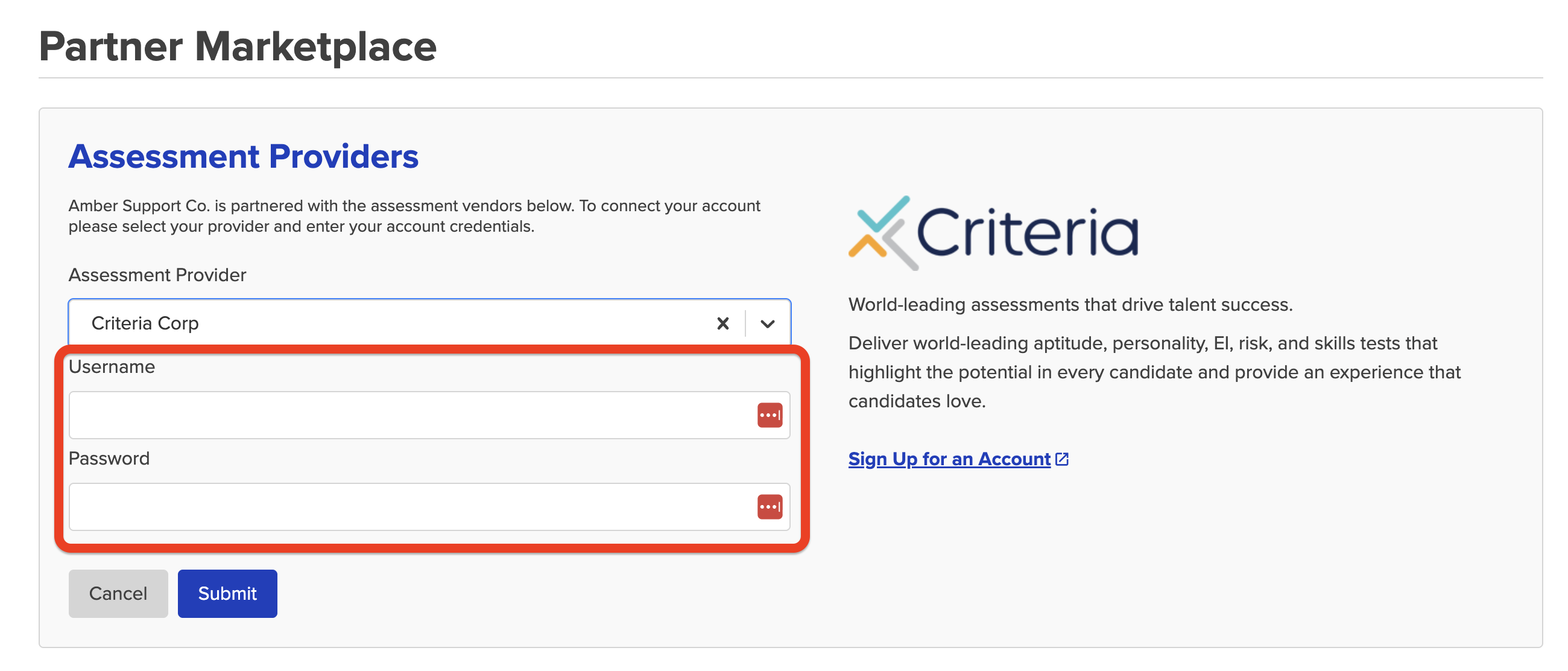
- Follow any on-screen prompts to complete the setup
Step 6: Confirm the Connection
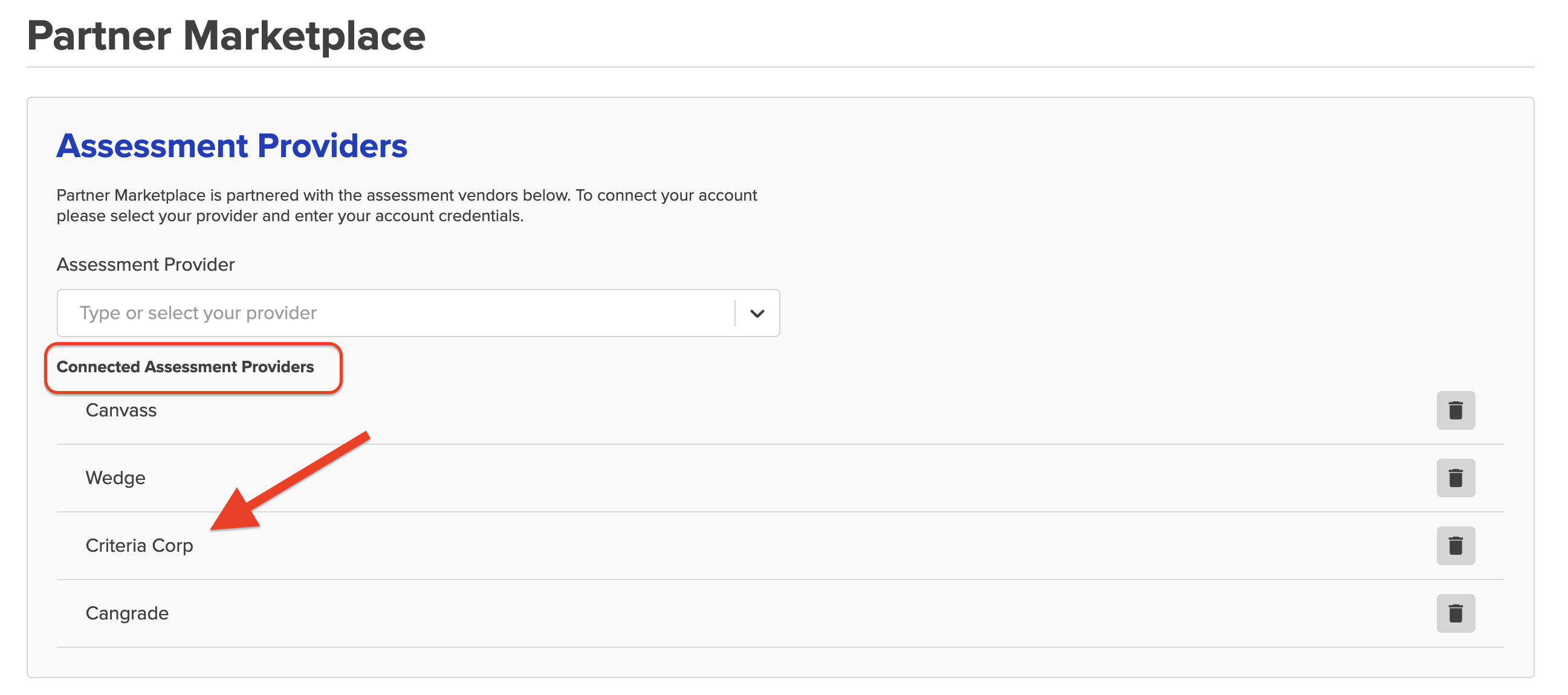
- After a successful setup, Criteria Corp will appear as a Connected Provider. If needed, you can remove the integration later by clicking the trash can icon next to it.
Using Criteria Corp in the ATS
You can use Criteria Corp in one of two ways once it's connected in the ATS:
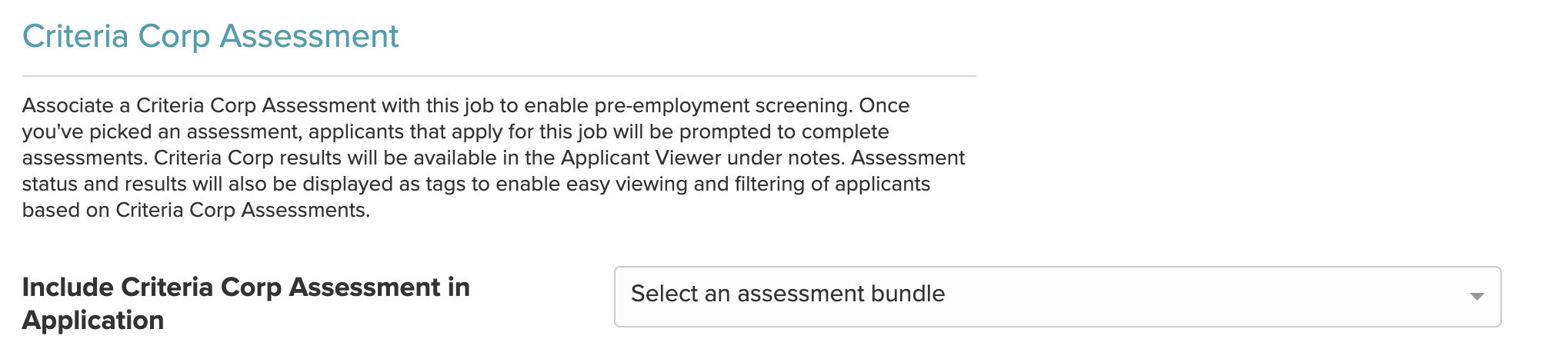
- At the Job Level: Select the Criteria Corp assessment you want to associate with the job from the drop-down menu on the Create/Edit Job page in the ATS. Once selected, every applicant who applies to that job will automatically be sent the assessment immediately after submitting their application.
- At the Applicant Level: Manually choose and send out the assessment to the applicant under the Verify menu found inside the applicant's profile.

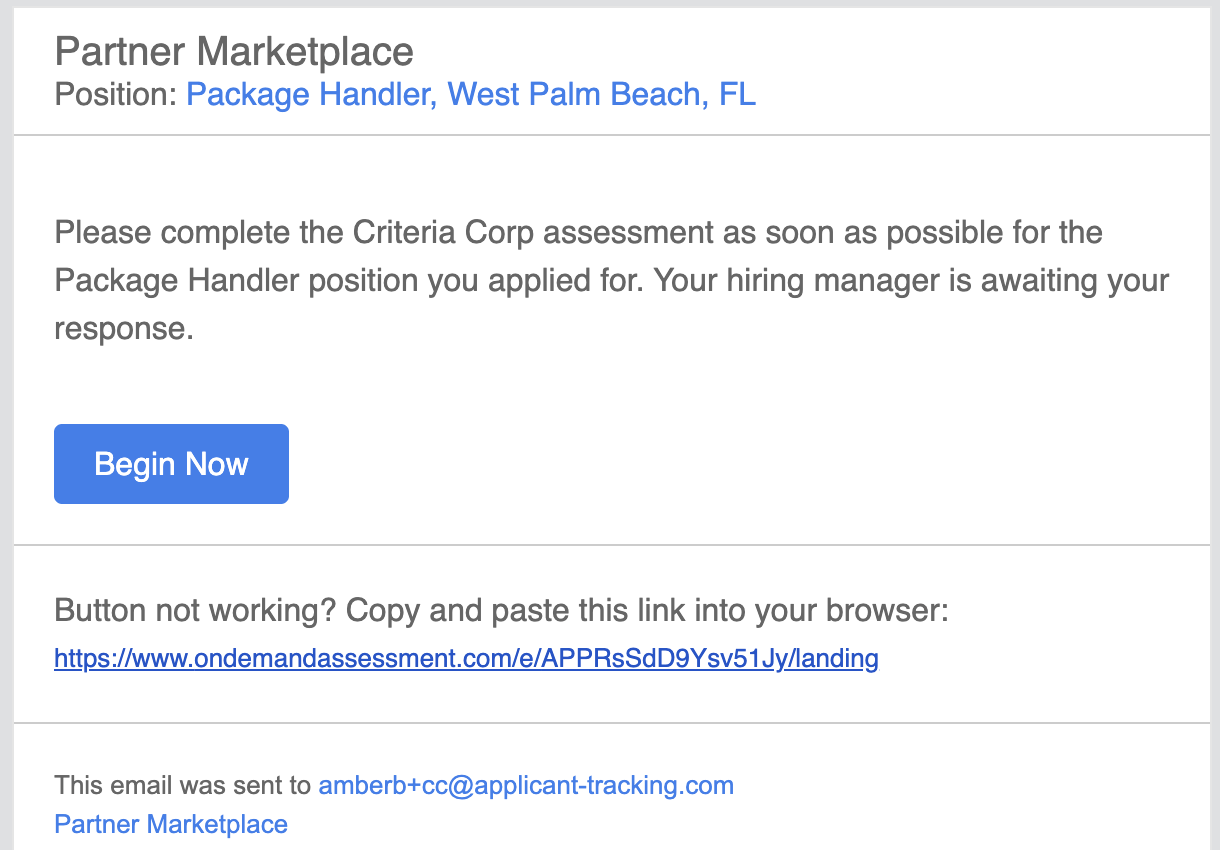
Once the candidate is sent the assessment, they will receive an email notification containing a link to complete it. An applicant tag will also appear on the candidate’s profile. This tag confirms that the assessment was successfully sent and is currently pending completion by the candidate.
- Applicant Email:
 Incomplete Tag:

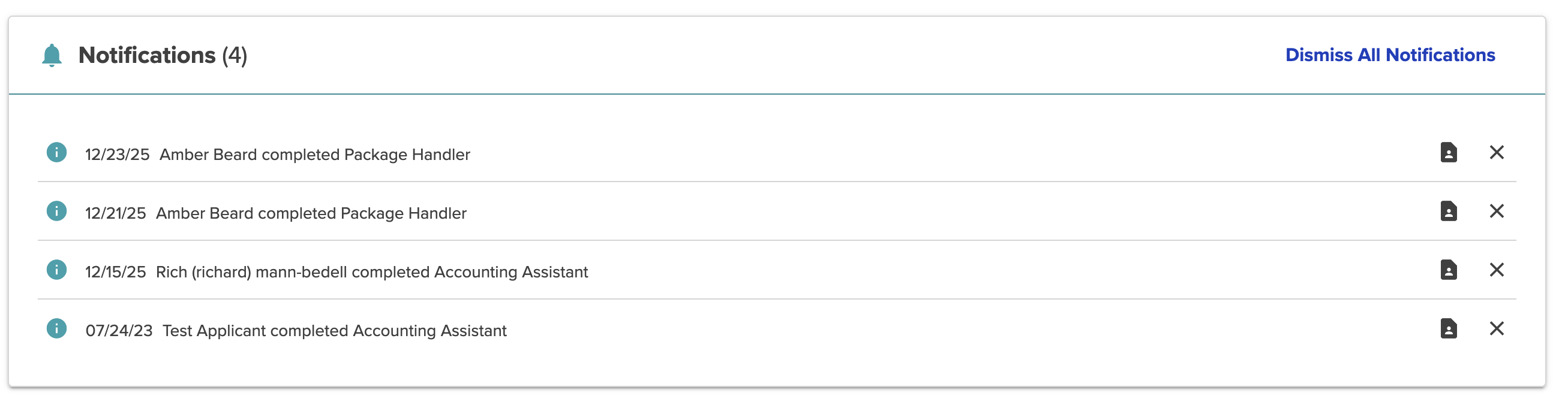
Once the candidate completes the assessment, the Incomplete tag will be replaced with a tag indicating the assessment results. You will also receive a dashboard notification confirming that the candidate has completed the assessment.
- Met Score Ranges:

- Did Not Meet Score Ranges:

- Dashboard Notification:
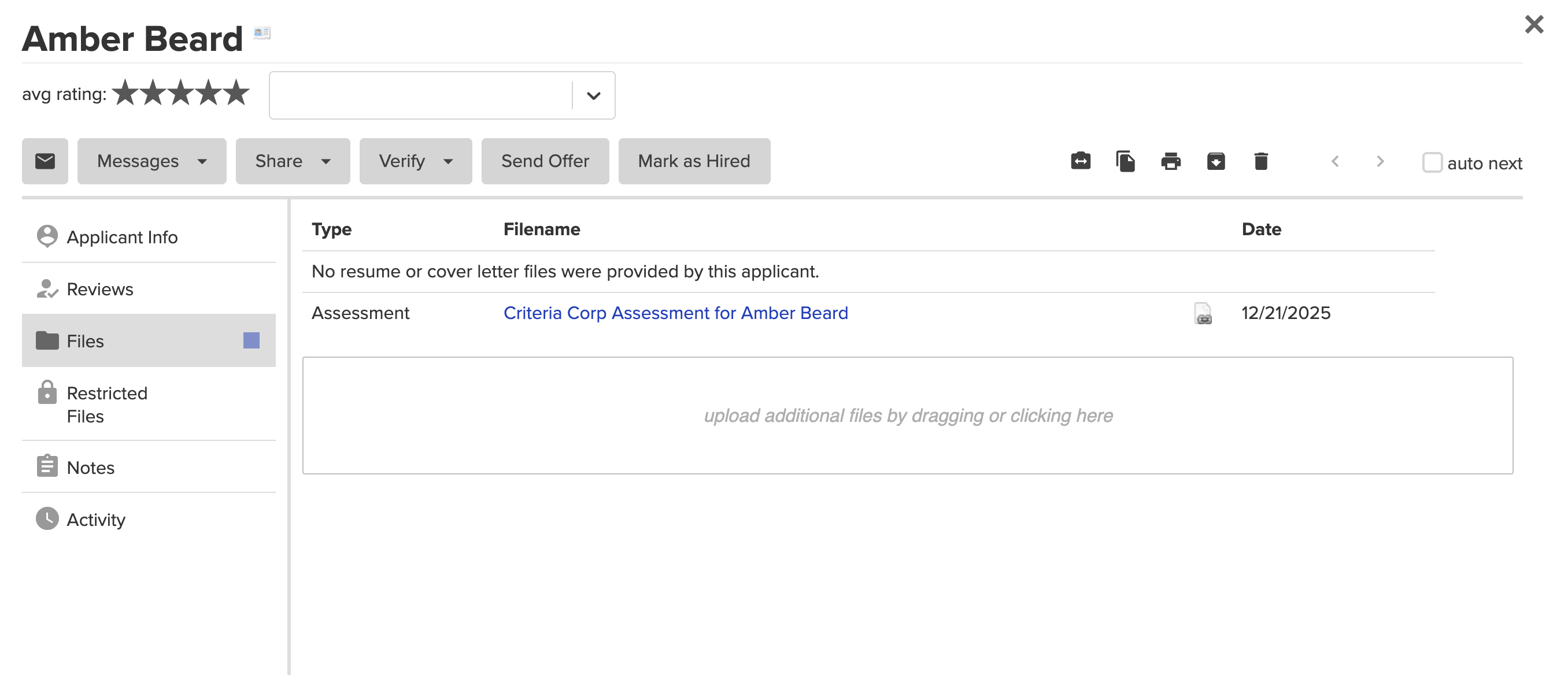
Viewing Results from Assessment: There will be a link to the assessment located under the Files section of the applicant profile.