
Time-Based One-Time Password (TOTP) authentication adds a second layer of security to your account—like a secret handshake, but digital. Once enabled, you’ll need more than just your username and password to log in. You’ll also enter a six-digit code from an authenticator app or browser extension. These codes refresh every 30 seconds, keeping your account extra secure.
Setting Up TOTP Authentication
Here’s how to get started with TOTP in just a few quick steps:
1. Navigate to Your Profile
Click the hamburger menu (☰) in the top left corner of your screen.
Select My Profile.
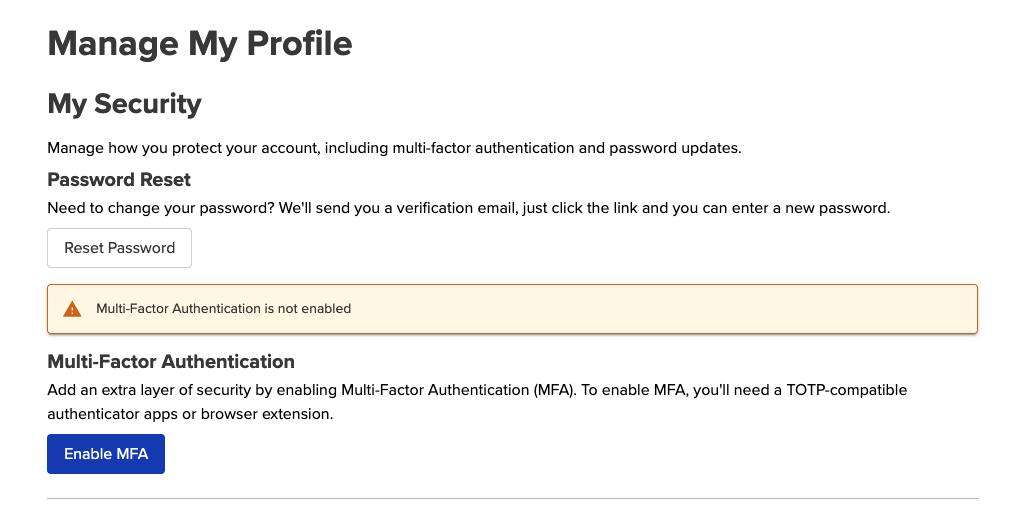
You’ll land on the Manage My Profile page. At the top, under My Security, look for a button labeled Enable MFA.
2. Enable MFA
Click Enable MFA.
A window will pop up showing a QR code and a Manual key.
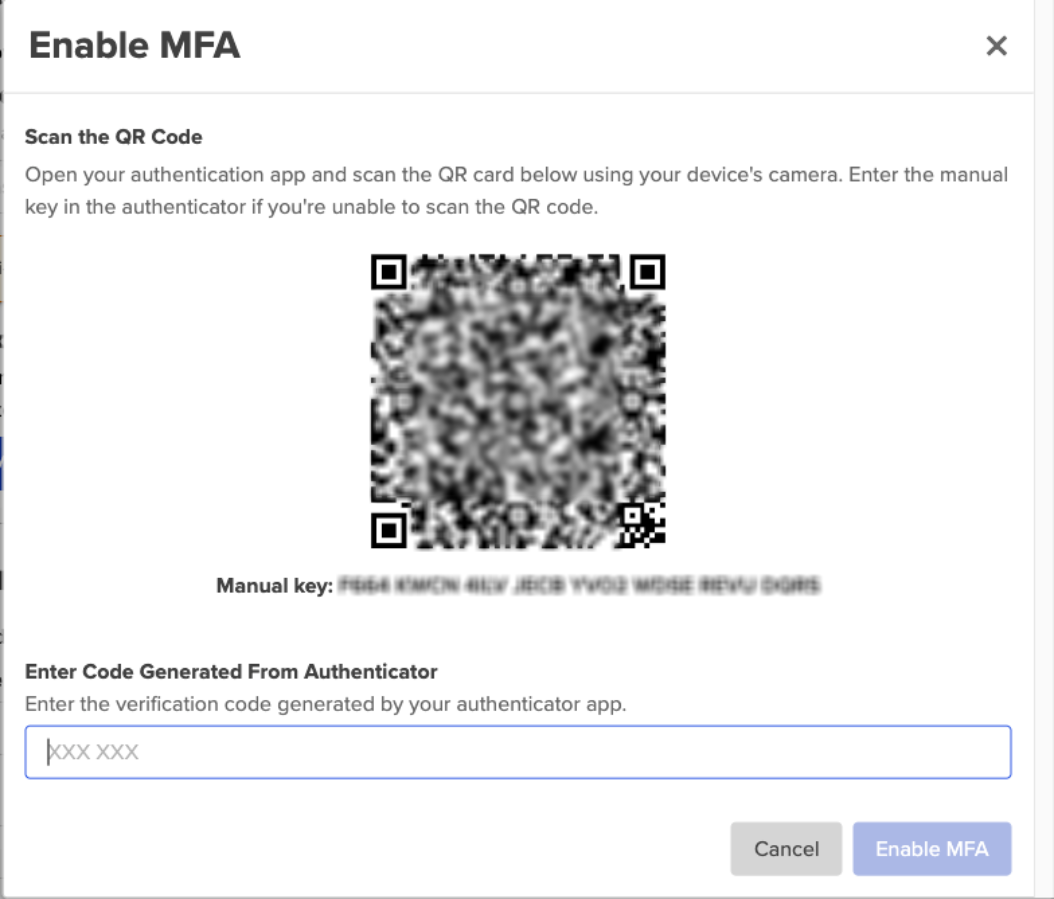
If you’re using a smartphone, go ahead and scan the QR code with your authenticator app.
No camera? No problem—you can manually enter the key into your app instead.
Once your app is set up, enter the 6-digit verification code it generates.
3. Save Your Backup Codes
After verifying your code, you’ll see a screen with Backup Codes.
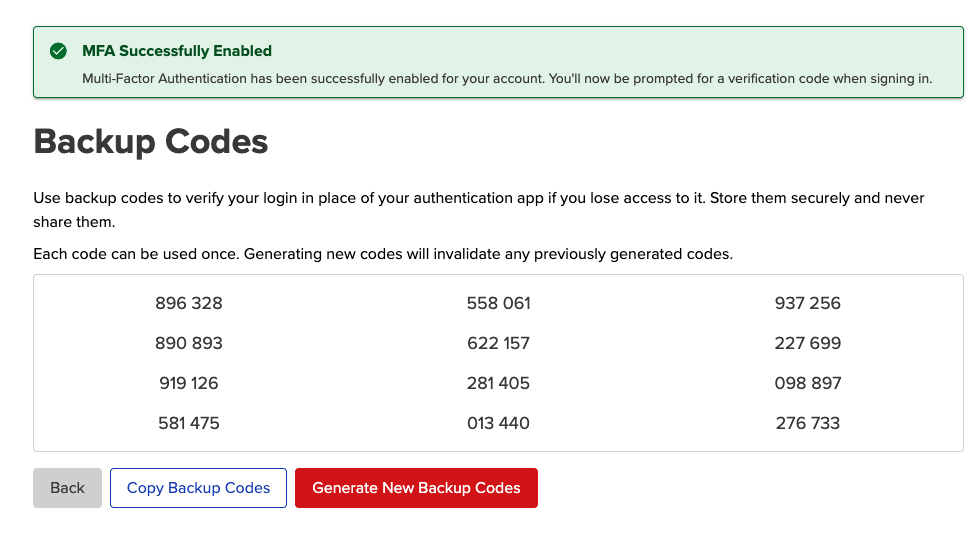
These codes are your emergency plan. If you lose access to your authenticator app, they let you log in anyway.
Each code can only be used once. Generating new ones will deactivate the old set.
Click Copy Backup Codes to copy them all in one go, then paste them into a safe place—like a password manager.
Keep them private. These codes are for your eyes only.
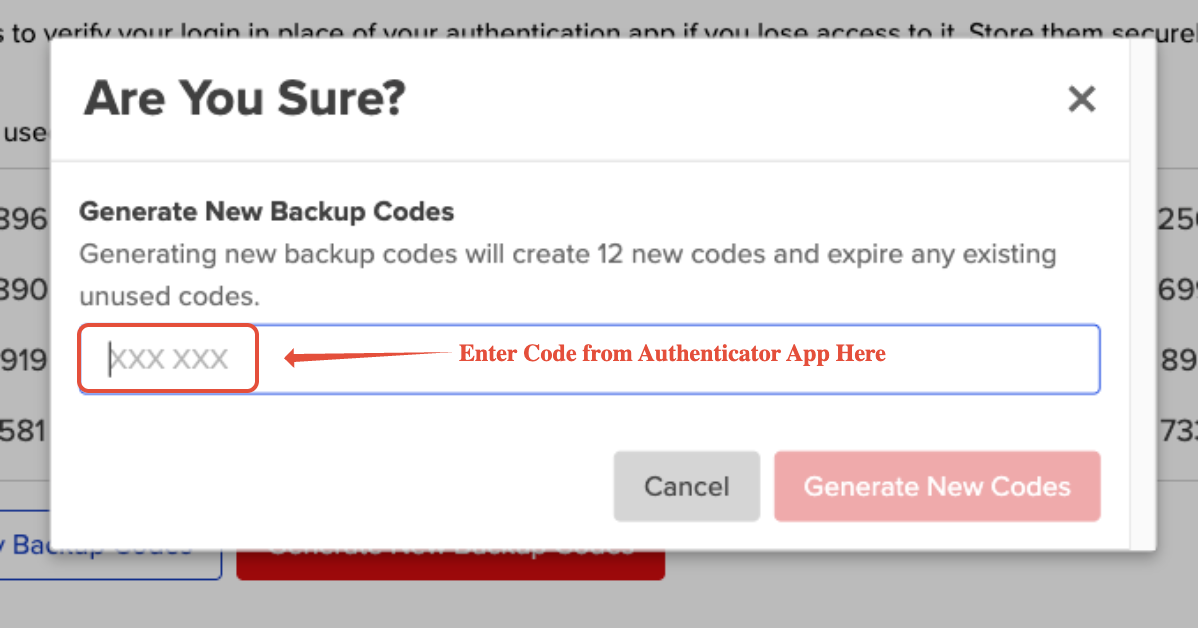
If you do need to generate new ones, make sure you have your Authentecator app handy.
Logging In with TOTP
Once TOTP is enabled:
Enter your usual login credentials (email + password).
You’ll be prompted for a 6-digit code from your authenticator app or browser extension.
Enter the code, and you’re in!
Compatible Authenticator Apps and Extensions
You can use just about any TOTP-compatible app or extension. Here are some popular options:
Mobile Apps (for iOS or Android)
Browser Extensions
Prefer to generate codes in your browser? Try one of these:
Need Help?
Ran into trouble or have a question? Don’t worry—we’ve got your back. Reach out to our Support Team anytime, and we’ll be happy to help.
