

At this time, Workflow Templates cannot be sent directly from the applicant (candidate) profile. While this functionality is under development, the steps below outline a temporary workaround that allows you to send a workflow template to an applicant using an alternate path.
This workaround can be used until direct sending from the applicant profile is supported.
Workaround Steps
Step 1: Start from the Applicant Profile
Navigate to the applicant’s profile.
Open the Messages menu.
Select Send Request to Applicant.
Click Launch.
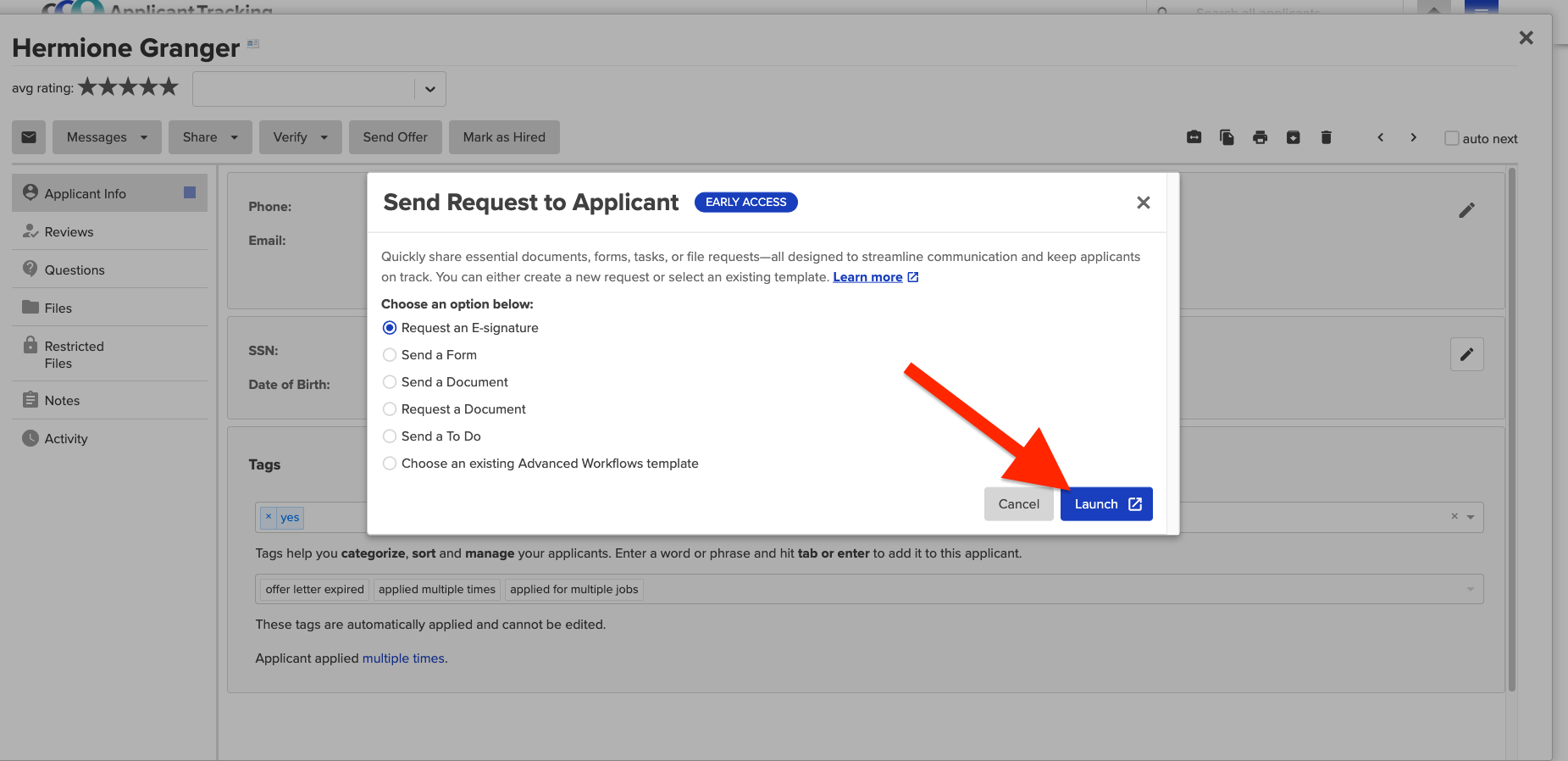
Step 2: Access Manage People
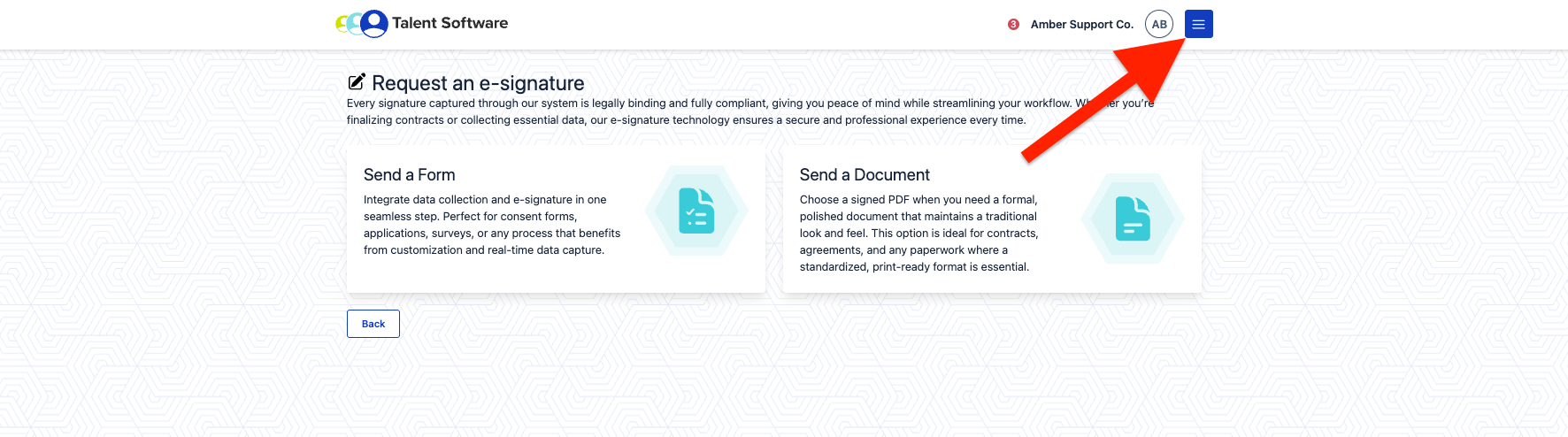
After clicking Launch, you will be taken to the e-signature request screen.
Do not select any of the available e-signature options on this page.
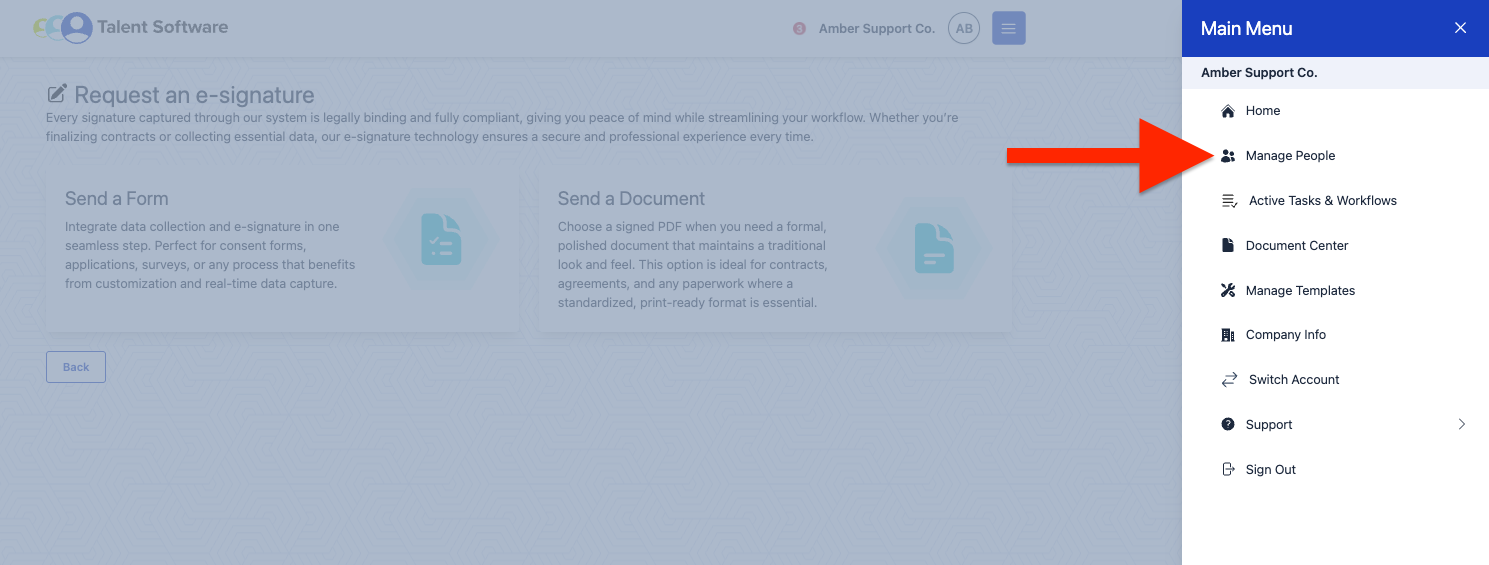
Instead, locate the hamburger menu (three horizontal lines) in the upper-right corner of the screen.
Click the menu and select Manage People.
Step 3: Send the Workflow Template
In Manage People, locate the applicant.
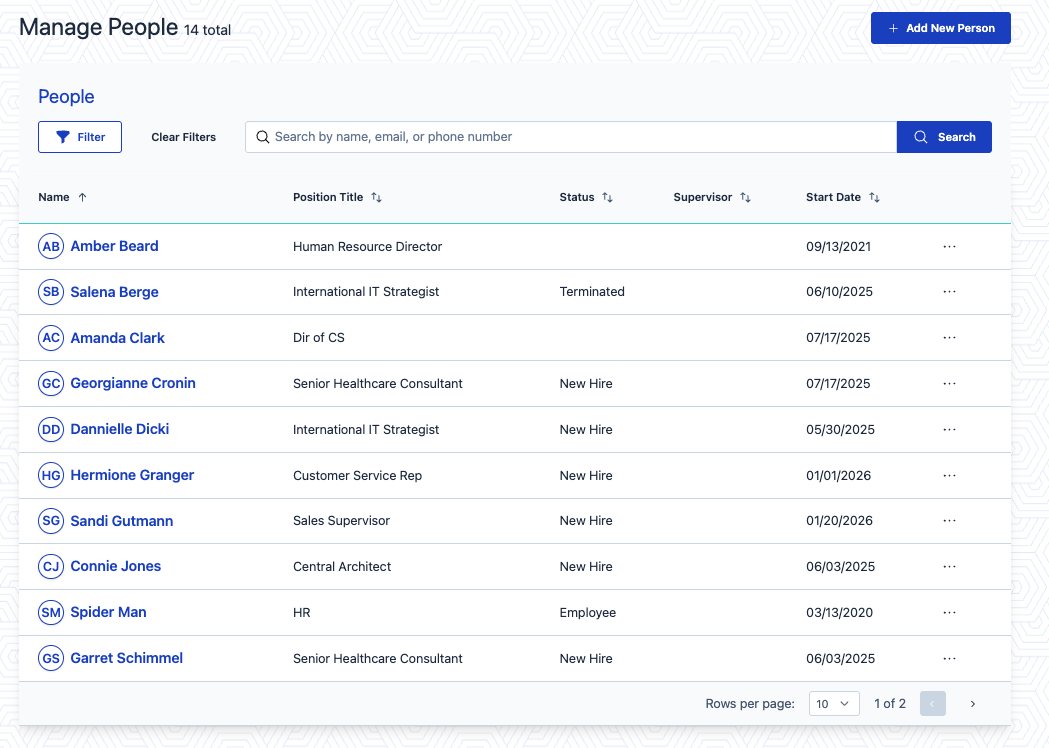
Click on the applicant’s name to open their record.
From here, use the Send Request option.
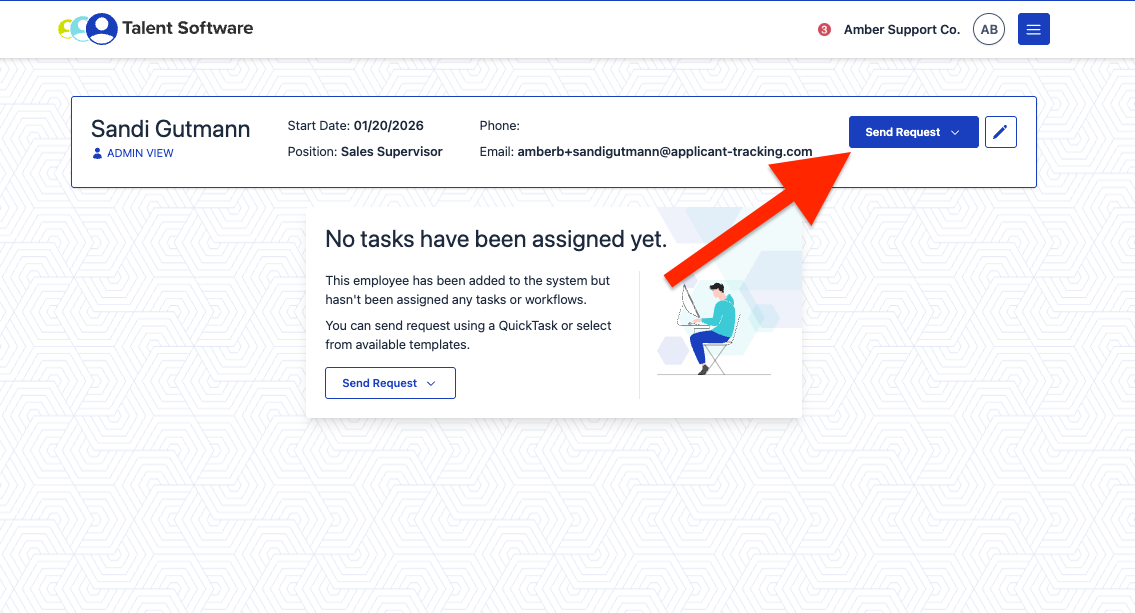
Select and send the appropriate Workflow Template.
Important Notes
This process is intended as a temporary workaround only.
Once the ability to send workflow templates directly from the applicant profile is released, these steps will no longer be necessary.
